
Controls
Click to upload, drag & drop, or paste (Ctrl+V)
Preview
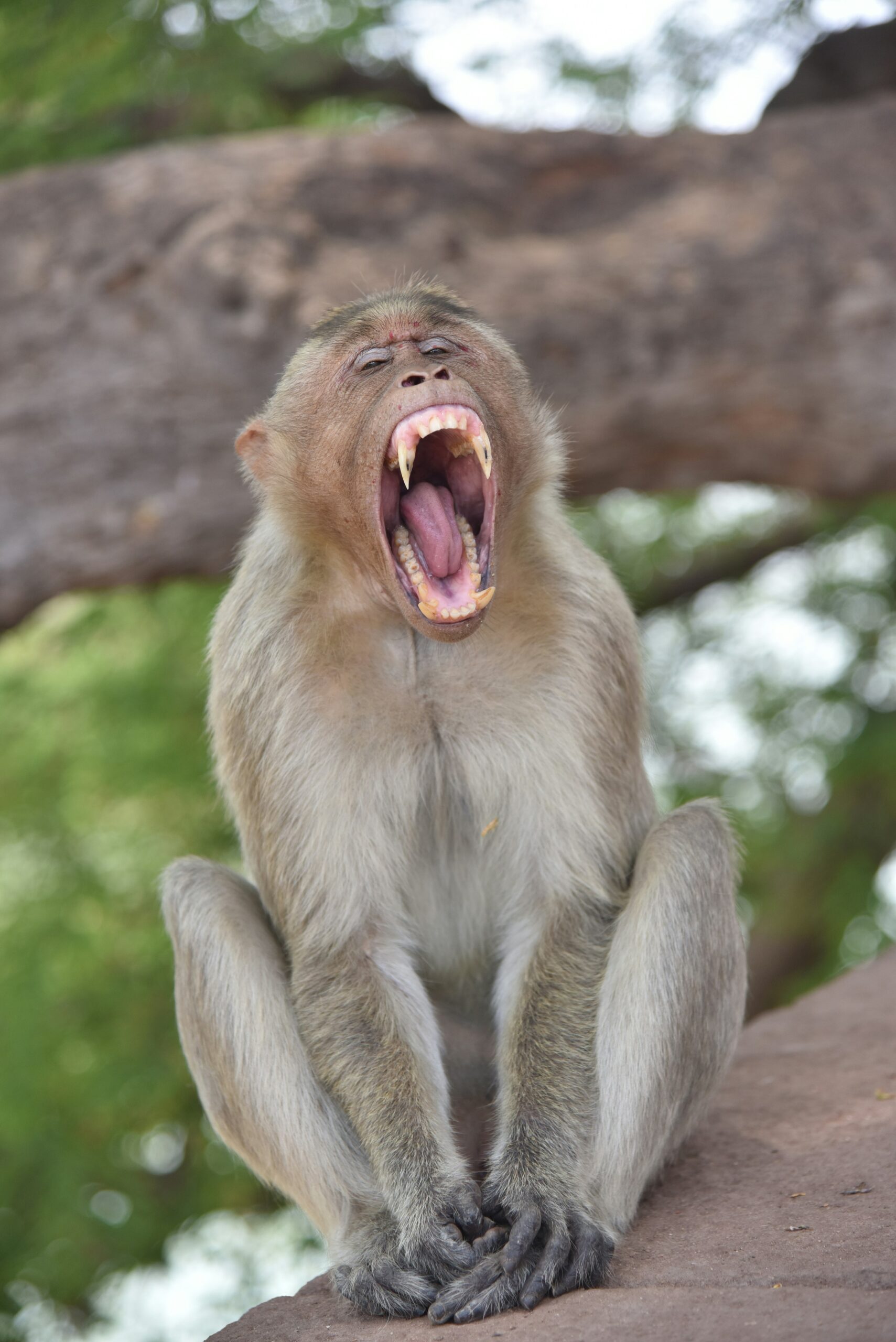 Photo by Bisakha Datta on Unsplash (@bisakhadatta)
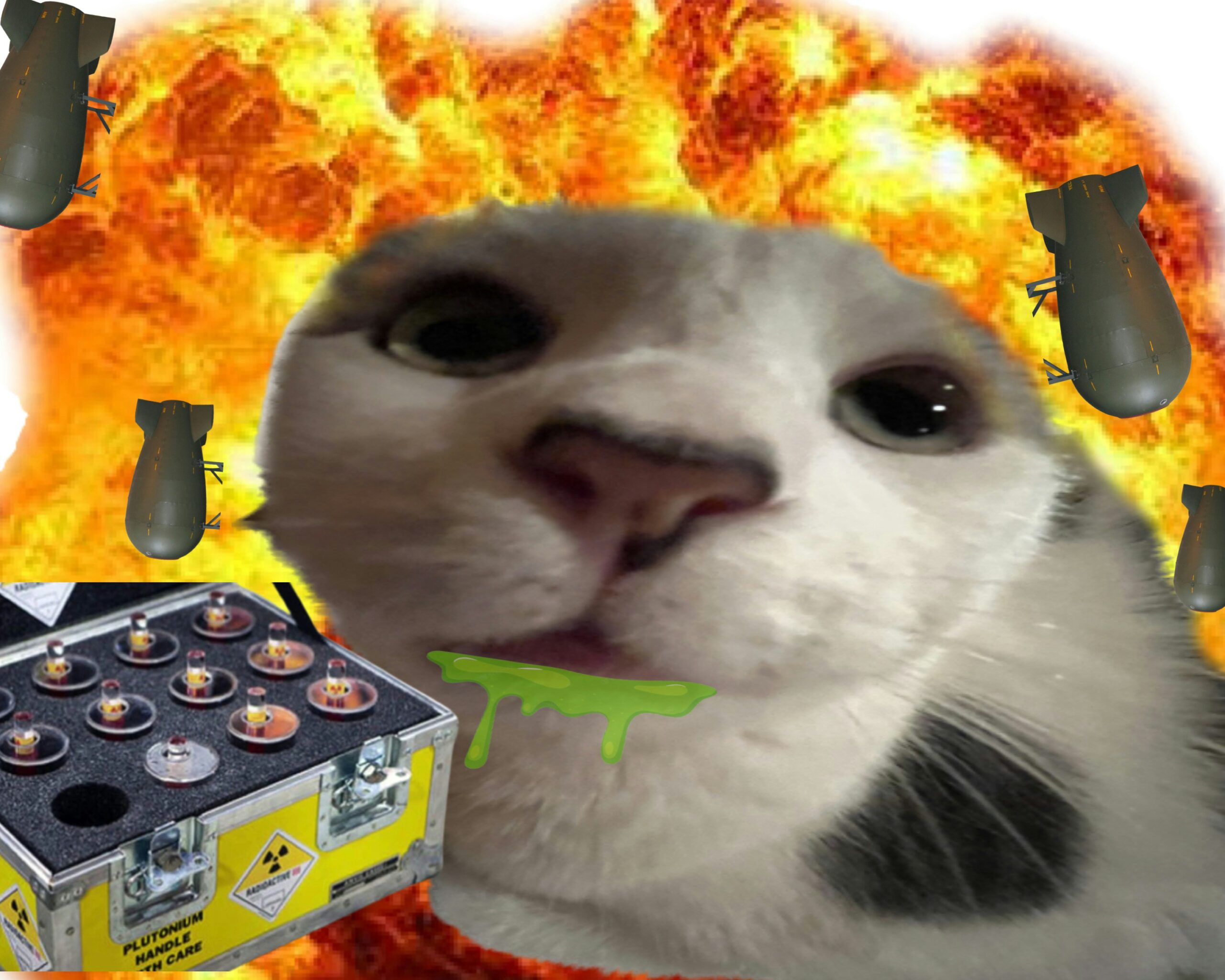 Photo by kevin zhao on Unsplash (@opbib)
What Is Meme Maker?
DebitEarn’s meme maker tool lets you add text to an image to create shareable content. You upload a photo, type your top and bottom text, pick a font, and download or copy the result. No design skills or launching an image editor needed.
Classic memes use bold white text with a black outline, usually in the Impact font, placed at the top and bottom of the image. This tool follows that same pattern while giving you options to customize the look.
Top Text
The setup line. It usually appears at the top of the image and sets up the joke or situation.
Bottom Text
The punchline. It appears at the bottom of the image and delivers the humor.
How to Make a Meme
Creating a meme takes less than a minute:
- Step 1: Upload an image. You can click, drag and drop, paste from your clipboard, or use an image URL.
- Step 2: Type your top text and bottom text in the boxes.
- Step 3: Adjust the font, text size, and colors if you want a custom look.
- Step 4: Click Download and pick your format. PNG is typically best for sharing online.
Tip: Keep your text short. The best memes use 5 to 10 words total. Long paragraphs are hard to read and usually lose the joke.
Fonts and Layouts
This tool offers two layout options and several fonts:
- Text Inside: Text appears directly on top of the image. This is the classic meme format.
- Text Outside: Text appears in bars above and below the image. This keeps the image clean and makes text easier to read.
For fonts, Impact is the traditional choice for memes. It is bold, readable, and universally recognized. The other options work too, but Impact will always feel the most meme-like.
Advanced Image Settings
Beyond basic text, the tool includes a few image filters:
- Grayscale: Removes all color and makes the image black and white.
- Brightness: Makes the image lighter or darker.
- Blur: Softens the image. Useful for backgrounds or adding a dreamy effect.
- Contrast: Increases or decreases the difference between light and dark areas.
- Sepia: Gives the image a warm, vintage brown tone.
These filters apply to the image only, not the text. You can stack multiple filters together, and the Reset Filters button returns everything to normal.
Export Formats
The tool supports three download formats:
- PNG: Best for sharing online. Lossless quality, transparent background support if needed.
- JPEG: Smaller file size. Good for email or messaging apps that compress files.
- PDF: Best for printing. Sends your meme to the printer as a document.
Downloads happen at the original resolution of your uploaded image. If you upload a high quality photo, you get a high quality meme.
Frequently Asked Questions
Is this free to use?
Yes. The tool is completely free. No accounts, no watermarks, no limits.
Are my images uploaded anywhere?
No. Images are processed entirely in your browser. Nothing is uploaded to a server.
Why is my text not showing up?
Make sure you typed text in the Top Text or Bottom Text box. If both are empty, there is nothing to render. Also check that your image loaded correctly.
Can I use any image?
Technically yes, but be mindful of copyright. If you are sharing publicly, use images you created, have permission to use, or that are in the public domain.
What size should my image be?
Any size works. The tool adapts the canvas to your image dimensions. Square images work best for Instagram, while 16:9 images work better for Twitter.
Can I make multi-line text?
Yes. Press Enter in the text box to create a new line. Each line is rendered separately and stacked vertically.